Working folders
Choose where the files your AI will read and write are located.
What is a working folder?
It is the folder where a terminal or AI starts its work. To update a website, select its project folder. To write a report, choose a folder for your reference files and results. It gives your AI a clear point of reference when you say “this file.”
Create your first practice folder
- In File Explorer or Finder, create an empty folder named
orke-practiceunder Documents. - In a new session, choose “My PC” and the AI you want to use.
- Set the working folder to the folder you just created.
- When the terminal opens, ask “What is the current working folder?” and check the answer.
- Ask it to create a small file, then view the result in your file browser.
Work on an existing project
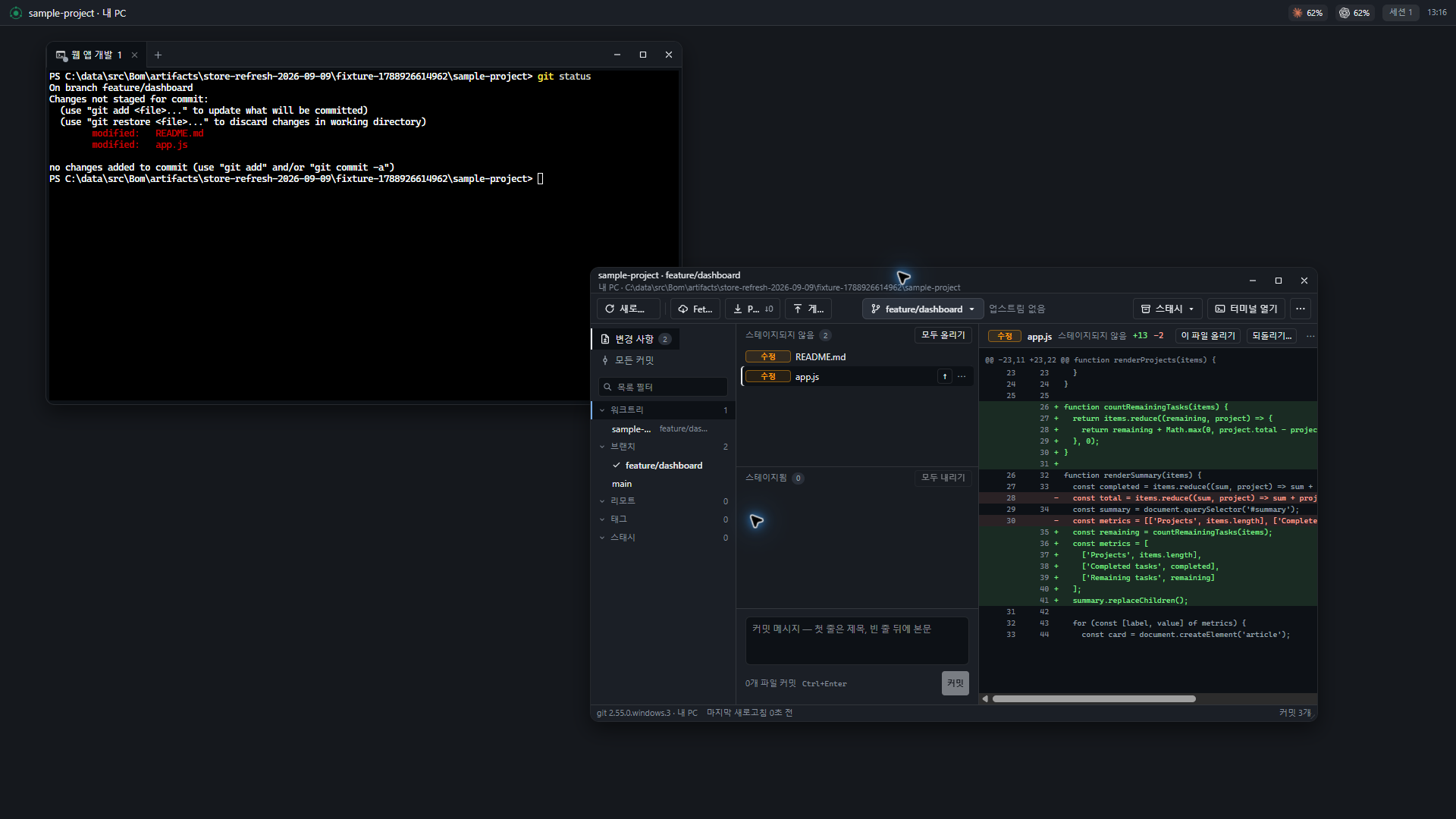
Select the repository’s root folder and tell the AI which files to change, the result you want, and how to check it. If you work on several projects at once, include the project name in each session name to tell them apart.
Choosing a folder does not set permissions
A working folder on My PC is a starting location. Selecting it does not confine shell actions to that folder. Understand and check file changes and command results according to the permissions of the environment you use.
Isolation does not automatically mount PC folders. Work takes place in a folder inside the container, where you prepare the files and tools you need.
Package working folders
A package runs in its own working folder. Multiple runs can share files. To keep a new result for every run, specify a file naming rule that includes a date or run number in the instructions. To update the same result, specify the file name to overwrite.
When you cannot find a file
- Check the actual save path reported by the AI.
- Check the file name and extension.
- If the task ran in isolation, check that you are not looking in a PC folder with the same name.
- Check the package’s current step and run history. The save step may not have finished yet.