Sessions and terminals
Start work, follow its progress, and reopen it later.
Sessions and windows are different
A session is a running shell or AI task. A terminal window is the view where you watch and interact with it. Closing a window keeps a live session running. You can clear your screen while a long task runs, then return to the same work.
Start a new task
- In “New session,” choose a recognizable name, such as “Update homepage menu.”
- Choose a shell or AI and the environment where it will run.
- Select a working folder and start.
- Read the terminal’s startup screen and any errors, and complete any required sign-in.
- Send the task and how you want the result checked. In a regular shell, enter commands.
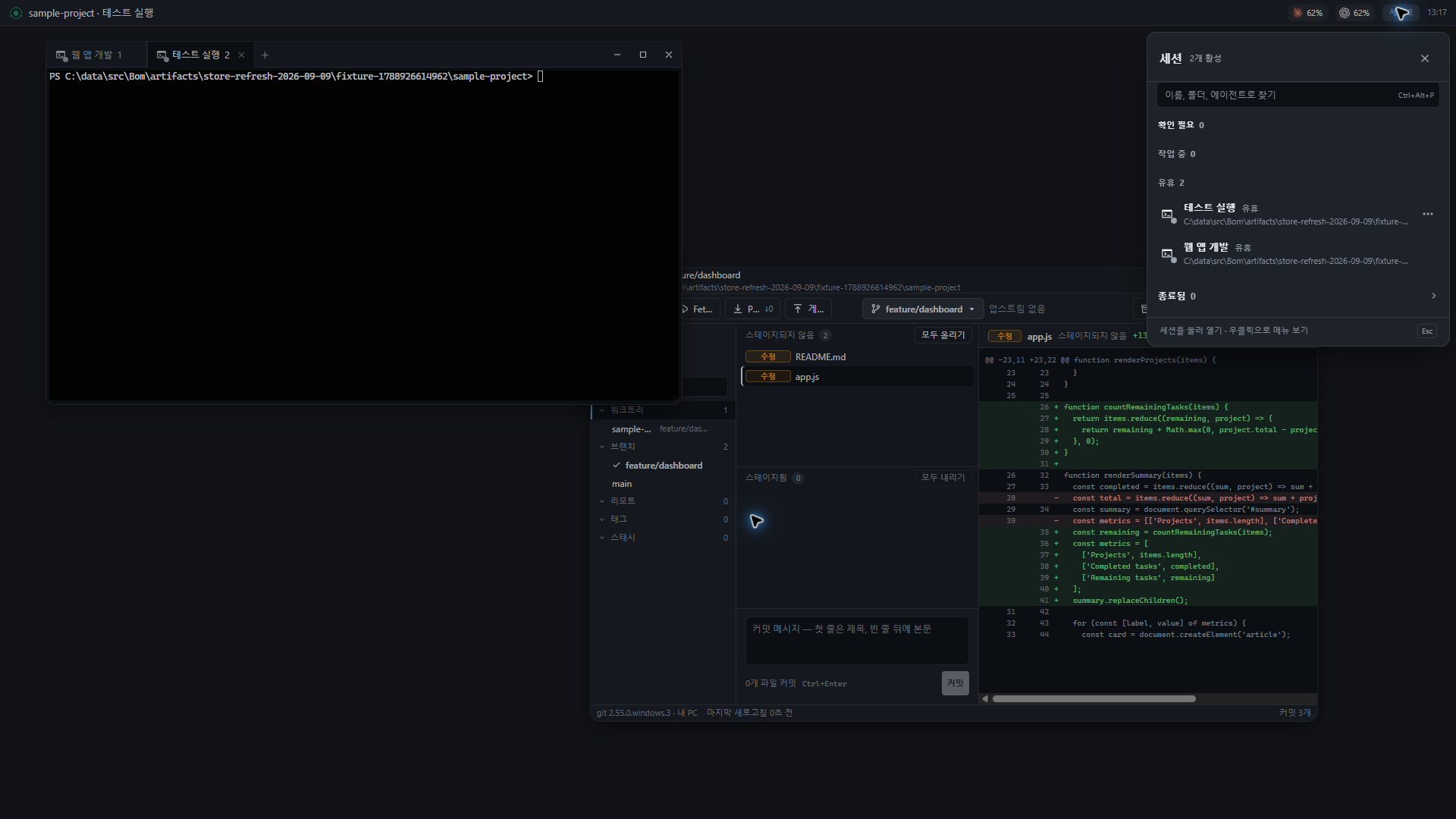
Read task status
| Situation | What to do next |
|---|---|
| Working | Read the progress output and results, and wait. |
| Waiting for input or approval | Open that terminal, read the request, and respond. |
| Completed or process exited | Check the final response, files, and test results. |
| Exit status needs checking | Use “Check termination again” in the task list. |
Close, reopen, or end
| Action | Result |
|---|---|
| Close a terminal window or tab | Closes the view and keeps the running session. |
| Open from the task list | Reconnects to the same live session. |
| End a session | Requests that the actual task end. |
| Quit orke entirely | Also ends running sessions. Live work is not restored after restarting the PC. |
On Windows and Mac, the app window’s × hides the app view. Closing a web window or web tab inside the workspace closes that page. Closing a terminal window and closing a web page have different effects.
Copy, paste, and interrupt
On Windows, Ctrl+C copies when text is selected and interrupts when it is not, following the two-press rule. Use Ctrl+Shift+C to always copy, and Ctrl+V to paste. On Mac, use ⌘C and ⌘V; Ctrl+C interrupts.
When sharing an error with an AI, include the output and the command that produced it.
Manage sessions with commands
Use session commands to read lists, screens, and output, or to create and end sessions. Sessions created through the CLI appear in the list without automatically opening a window. Reading output and entering text are separate actions.